Gift Cards
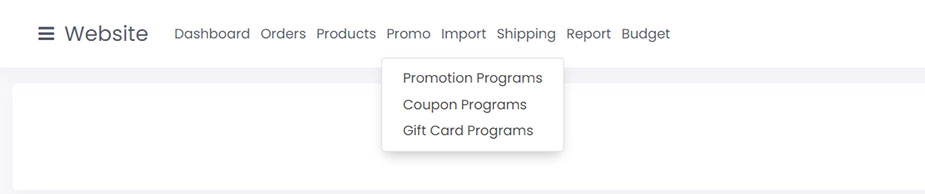
Gift cards are created in the "Promo" tab of the platform. To add a new gift card, you must first create a gift card program. A gift card program determines the specs of the gift card. To create a gift card program, click the "Promo" tab on the top bar and click "Gift Card Programs."
A gift card program only needs to be created once. From there, you can create as many gift cards using the program as you'd like.
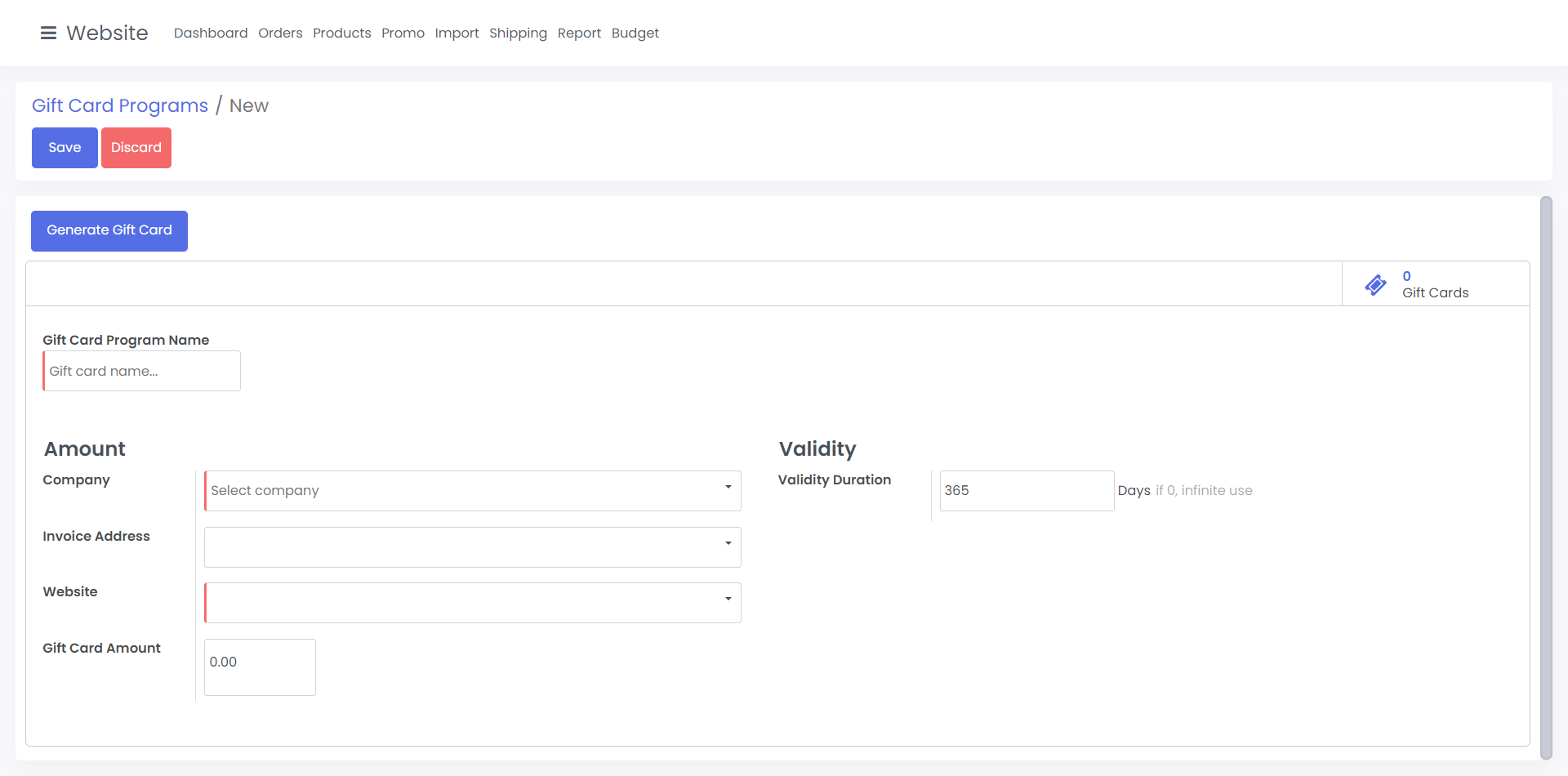
After clicking "Create", you'll be on the Gift Card Program creation page. Make sure all required fields are filled out or you won't be able to continue.
Gift Card Program Name: This is the name of the gift card that will be displayed to the user.
Company: This is the company you want the gift card to be used for
Invoice Address: This is the billing address the gift cards will be billed to (optional)
Website: This is the website you want the gift card to be used for (this should match what's in the company field)
Validity Duration: This determines how long the gift card program is valid for (set to 0 for no limit)
Gift Card Amount: Set the amount of the gift card
Once you're done filling out the fields, click "Save" to complete creating the gift card program.
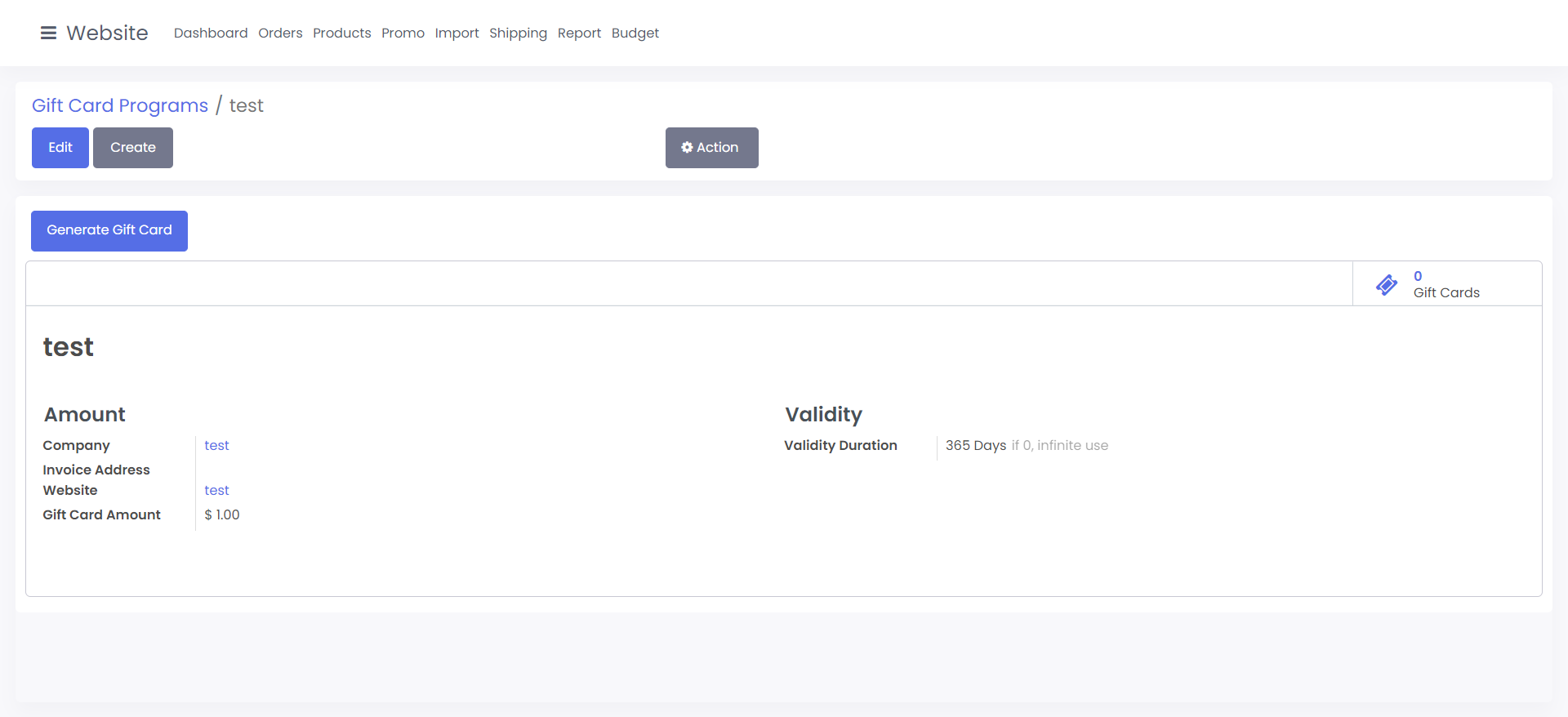
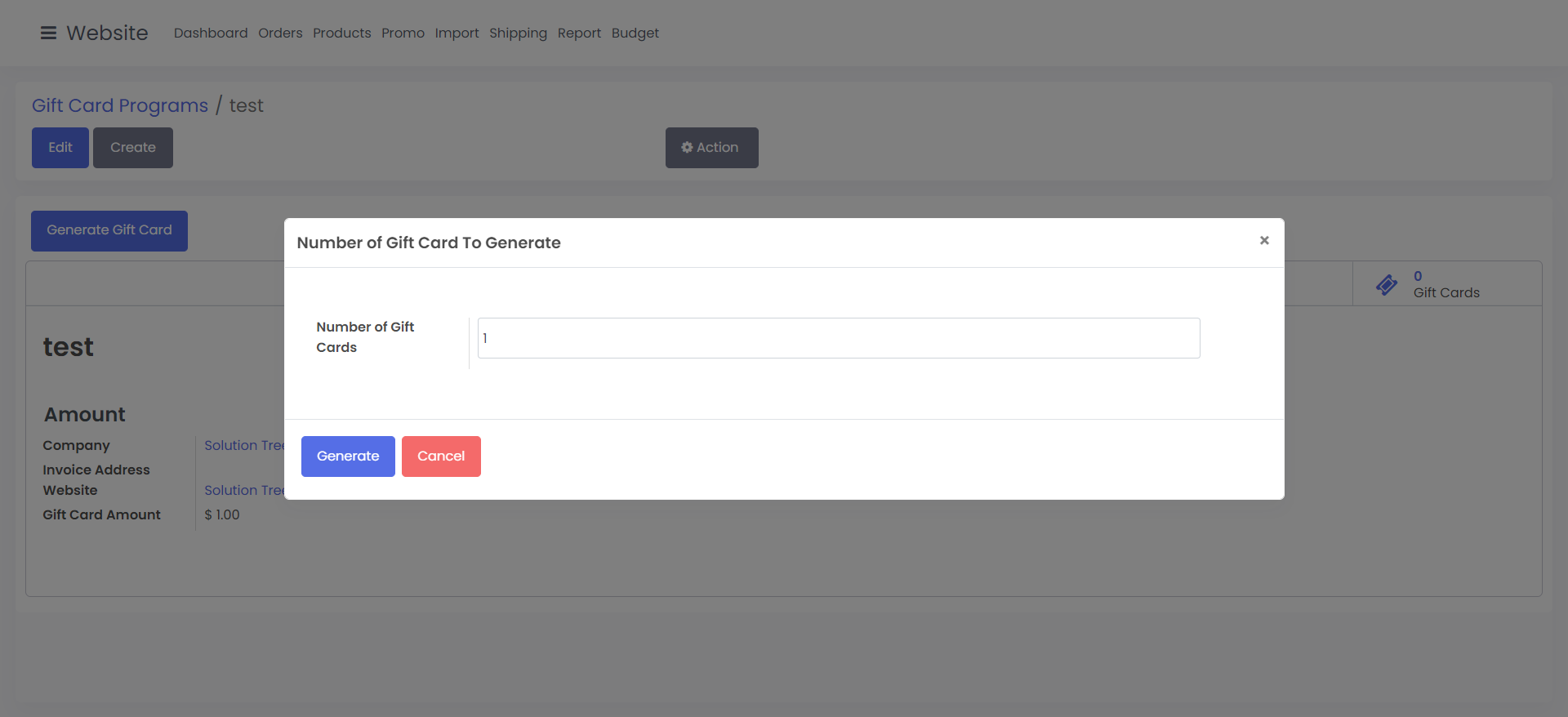
Once your gift card program is created, it's time to create a gift card. To create a gift card, click the "Generate Gift Card" button.
After clicking "Generate Gift Card", you'll see a pop-up window where you can enter how many gift cards you want to generate. Type in the number you'd like then click "Generate"
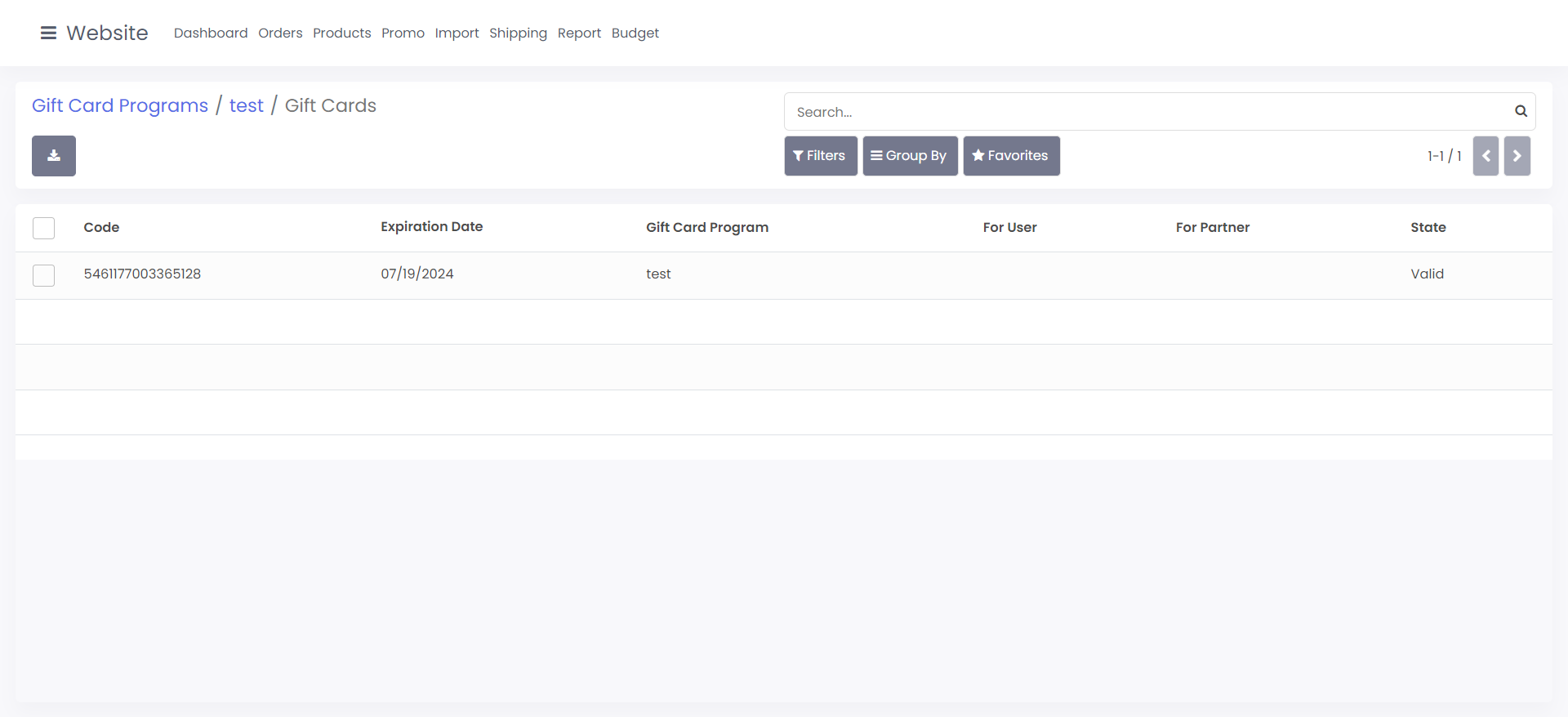
Once you're generated your gift cards, you can view them by going to the gift card program and clicking the gift cards button on the top right. From this screen, you can see the gift card code, download a report of gift cards, and assign them to specific users.