
Budgets
Budgets are created in the "Budget" tab of the platform. To add a new budget, you must first create a budget template. A budget template determines the specs of the budget. To create a budget template, click the "Budget" tab on the top bar and click "Budget Template."
A budget template only needs to be created once. From there, you can assign the budget to as many users as you'd like.
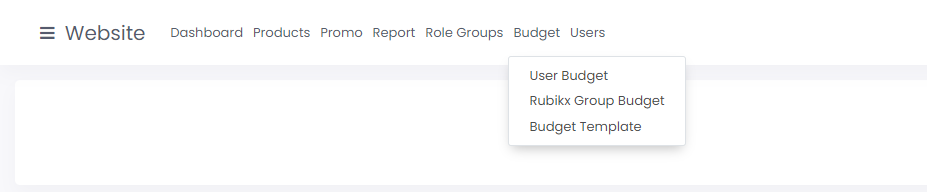
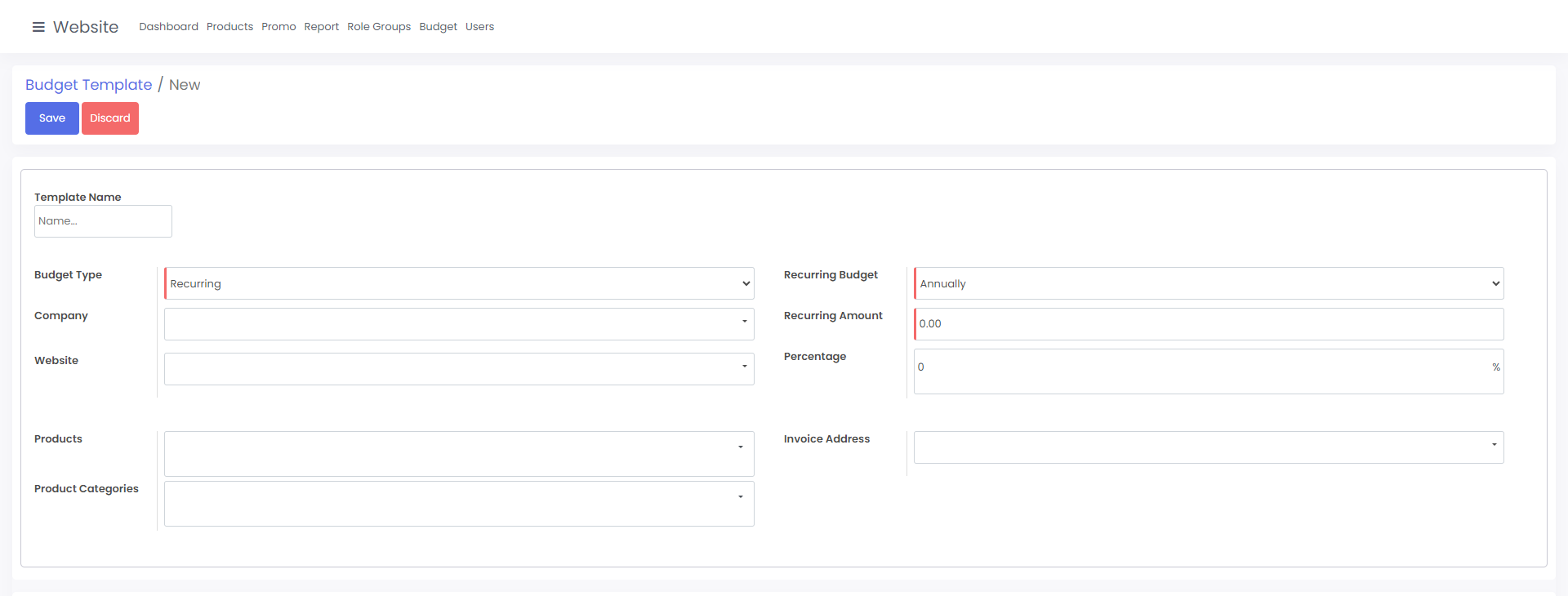
After clicking "Create", you'll be on the Budget Template creation page. Make sure all required fields are filled out or you won't be able to continue.
Template Name: This is the name of the budget that will be displayed to the user that has it assigned.
Budget Type: The type of budget. There are three budget types: decrementing, recurring and no set limit. Decrementing budgets are your standard budgets; their value is reduced until the user uses the full amount. Recurring budgets work the same as decrementing budgets but they renew after a set period of time (determined by the recurring budget field). No set limit budgets are budgets without a set limit (infinite value) and are commonly used to give users a purchase order style checkout.
Company: This is the company you want the budget to be assigned to
Website: This is the website you want the budget to be assigned to (this should be the same value as the company field)
Expire Date: Set the expiration date for the budget (only applicable to decrementing budgets)
Amount: Set the amount of the budget (only applicable to decrementing budgets)
Recurring Budget: Set the
Percentage (optional): Select the percentage of a budget that can be used per order (default value of 0 lets a user use 100% of the budget)
Products (optional): This field allows you to restrict the use of the budget to specific products on the store.
Product Categories (optional): This field allows you to restrict the use of the budget to specific product categories on the store.
Invoice Address (optional): If you need the budget to invoice to a specific address, you can enter it in this field.
Once your budget template is created, it's time to create a budget. To create a budget, click the "Budget" tab on the top bar and click "User Budget."
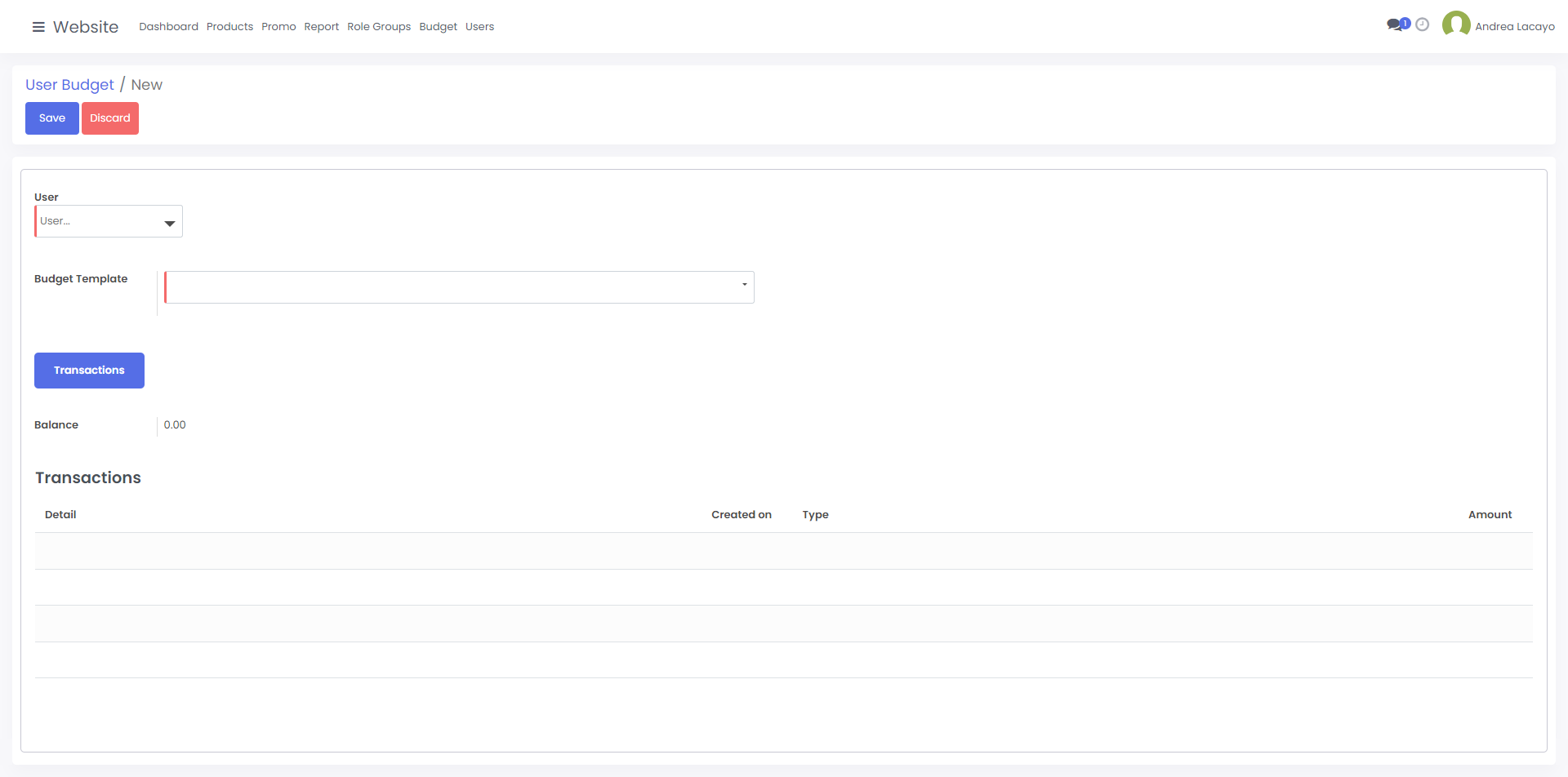
After clicking "Create", you'll be on the Budget creation page. Make sure all required fields are filled out or you won't be able to continue.
User: This field will let you select the user you'd like to assign the budget to. Click the dropdown arrow, then click search more for a more advanced search.
Budget Template: Select your budget template here
Once you're done choosing the user and budget template, click "Save" and the budget will be assigned to the user's account.